
Characters - Players and NPCs
Build Something You Want to Play
A game character can be a hero you control, a guide who gives advice, or an opponent. We will use those roles to learn the coding fundamentals behind a game, not just choose images.
Start in GameBuilder Workbench: choose a player sprite, add an NPC, give it a greeting, and select Generate / Sync Code. Find playerData, npcData1, and this.classes in the generated code. These are ordinary JavaScript definitions you can inspect and change.
By the end of this lesson, you should be able to:
- Explain how an object literal groups a character’s settings.
- Read a spritesheet using rows, columns, and zero-based indexes.
- Distinguish a data object from an instantiated game object.
- Explain what
PlayerandNpcinherit fromCharacter. - Create multiple NPC instances with different identities and greetings.
Spritesheets: Images Become Animation
A spritesheet contains still images arranged in a grid. Drawing successive frames makes a character appear to move.
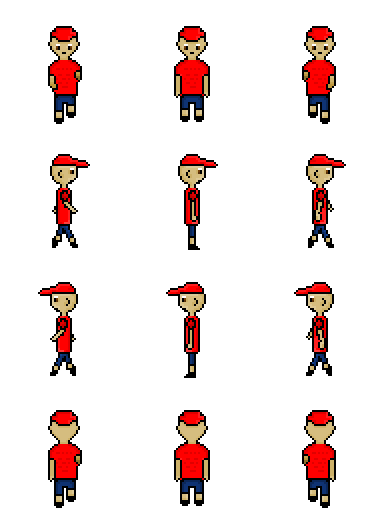
This sheet is 384 pixels wide and 512 pixels high, with 4 rows and 3 columns. Each frame is therefore 384 / 3 = 128 pixels wide and 512 / 4 = 128 pixels high. Rows and columns are indexed from 0, not 1. The example uses row 0 for down, row 1 for right, row 2 for left, and row 3 for up.
You can also create your own sheet with Pixilart. Its grid must match the orientation settings in your code.
Lesson 1: A Player’s Settings Are an Object Literal
The example below keeps the definition (playerData) separate from the class entry that uses it. This is the same pattern as GameBuilder’s generated code.
| Property | Coding idea | What to observe |
|---|---|---|
id |
String property | A unique character identity |
src |
String concatenation | path plus the image’s published location |
SCALE_FACTOR |
Number | Larger values make the character smaller |
STEP_FACTOR |
Number | Larger values make the player move more slowly |
ANIMATION_FPS |
Number | Frames per second, not movement speed |
INIT_POSITION |
Nested object | X/Y proportions between 0 and 1 |
orientation |
Nested object | The sheet’s rows and columns |
down, right, left, up |
Nested objects | Which frames each direction uses |
hitbox |
Nested object | Margins removed from the sprite’s collision rectangle |
const prevents reassignment of the variable; it does not freeze the properties of the object. Predict a change, edit one value, then rerun the game to test your prediction.
Challenge
Use WASD to move Chill Guy. Change one setting and rerun to compare.
Lesson 2: Data Objects Become Game Objects
playerData is a JavaScript object literal. It describes a character, but it does not create a canvas or listen for keys by itself.
this.classes is an array. Each entry pairs a class constructor with a data object:
Challenge
Move with WASD to meet the Guide and Merchant. Touch a character to see its greeting; press E to interact.
The engine reads those entries. Here is the essential construction pattern from GameLevel.create():
for (let gameObjectClass of expandedDescriptors) {
  if (!gameObjectClass.data) gameObjectClass.data = {};
  let gameObject = new gameObjectClass.class(gameObjectClass.data, this.gameEnv);
  this.gameEnv.gameObjects.push(gameObject);
}
For the player entry, that constructor call is equivalent to new Player(playerData, gameEnv). The new instance contains runtime state and methods, including its position, canvas, and keyboard handling. The engine stores it in gameEnv.gameObjects and updates it during the game loop.
Trace it: data object -> class entry -> constructor call -> running instance. Adding another entry asks the engine to construct another instance; it does not require rewriting the engine.
Lesson 3: Player and NPC Are Two Types of Character
An NPC is a non-player character: game code controls its behavior instead of the player’s movement keys. NPCs can be guides, merchants, or opponents; they do not have to be enemies or move around.
Both engine classes inherit from Character:
class Player extends Character { /* keyboard movement */ }
class Npc extends Character { /* dialogue and optional patrol */ }
Shared by both through Character |
Added by Player |
Added by Npc |
|---|---|---|
| Sprite loading, size, position, animation, drawing, hitbox | Movement-key listeners and movement behavior | Greetings, dialogue, interaction-key listeners, optional patrol |
Their constructors call super(data, gameEnv) to initialize the inherited character behavior. Inheritance lets different roles reuse the same rendering code. Instantiation lets one class create many characters, each with its own data and state.
GameBuilder produces a separate npcDataN definition for every NPC you add. The same spritesheet can represent a player, a guide, and a merchant; the selected class and data determine their roles.
Try a Player and Two NPCs
The next game uses one Player and two instances of Npc. Move with WASD. Move into an NPC to see its greeting; while touching it, press E to interact or close an open dialogue. The interact() method calls the engine’s showReactionDialogue() method. This is a function in an object literal, not JSON.
The workbench generates greetings and NPC class entries. The interact() methods below are a small code extension students can add in GAME_RUNNER; they are not generated by the current builder.
%%js

// GAME_RUNNER: Move with WASD to meet the Guide and Merchant. Touch a character to see its greeting; press E to interact. | output_height: 320px

import GameControl from '@assets/js/GameEnginev1.1/essentials/GameControl.js';
import GameEnvBackground from '@assets/js/GameEnginev1.1/essentials/GameEnvBackground.js';
import Player from '@assets/js/GameEnginev1.1/essentials/Player.js';
import Npc from '@assets/js/GameEnginev1.1/essentials/Npc.js';

class GameLevelCharacters {
  static displayName = 'Meet the Characters';

  constructor(gameEnv) {
    const path = gameEnv.path;
    const backgroundData = {
      name: 'Alien Planet',
      src: path + '/images/projects/gamebuilder/bg/alien_planet.jpg'
    };
    const playerData = {
      id: 'player',
      src: path + '/images/projects/gamebuilder/sprites/chillguy.png',
      SCALE_FACTOR: 5,
      STEP_FACTOR: 1000,
      ANIMATION_FPS: 8,
      INIT_POSITION: { x: 0.15, y: 0.5 },
      orientation: { rows: 4, columns: 3 },
      down: { row: 0, start: 0, columns: 3 },
      right: { row: 1, start: 0, columns: 3 },
      left: { row: 2, start: 0, columns: 3 },
      up: { row: 3, start: 0, columns: 3 },
      hitbox: { widthPercentage: 0.45, heightPercentage: 0.2 }
    };
    const npcData1 = {
      id: 'guide',
      greeting: 'Welcome! Explore the planet and find the merchant.',
      src: path + '/images/projects/gamebuilder/sprites/chillguy.png',
      SCALE_FACTOR: 5,
      ANIMATION_FPS: 8,
      INIT_POSITION: { x: 0.45, y: 0.5 },
      orientation: { rows: 4, columns: 3 },
      down: { row: 0, start: 0, columns: 3 },
      hitbox: { widthPercentage: 0.1, heightPercentage: 0.2 },
      interact() {
        this.showReactionDialogue();
      }
    };
    const npcData2 = {
      id: 'merchant',
      greeting: 'I trade stories. What did you discover on your journey?',
      src: path + '/images/projects/gamebuilder/sprites/slime.png',
      SCALE_FACTOR: 5,
      ANIMATION_FPS: 8,
      INIT_POSITION: { x: 0.75, y: 0.5 },
      orientation: { rows: 4, columns: 4 },
      down: { row: 0, start: 0, columns: 3 },
      hitbox: { widthPercentage: 0.1, heightPercentage: 0.2 },
      interact() {
        this.showReactionDialogue();
      }
    };

    this.classes = [
      { class: GameEnvBackground, data: backgroundData },
      { class: Player, data: playerData },
      { class: Npc, data: npcData1 },
      { class: Npc, data: npcData2 }
    ];
  }
}

export const gameLevelClasses = [GameLevelCharacters];
export { GameControl };
Lesson 4: Drawing and Timing Make Characters Visible
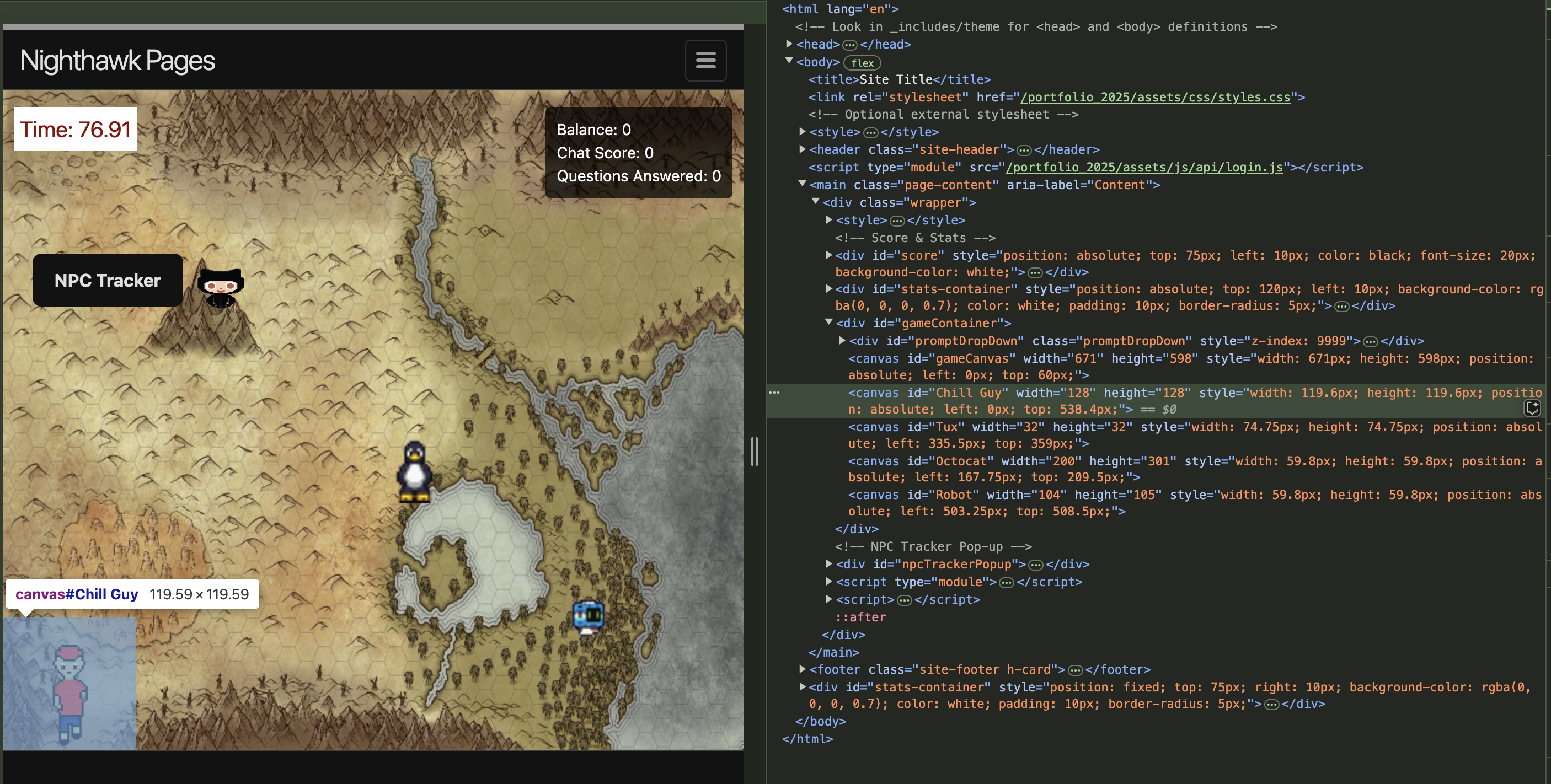
Character loads the image, creates a canvas inside gameEnv.container, and uses the direction settings to select frames. Its draw() method clears the old picture, updates the animation frame, draws the current sprite, and positions the canvas. Player and Npc reuse this behavior rather than maintaining separate drawing implementations.
ANIMATION_FPS: 8 advances animation at eight frames per second using elapsed time. It changes the animation, not movement speed. STEP_FACTOR controls the player’s movement step: larger values make it slower, and both axes use a width-based step. Movement still uses steps per game update in this engine version; animation timing and movement timing are different concerns.
Legacy ANIMATION_RATE is supported as 60 / ANIMATION_RATE frames per second, but new examples should use ANIMATION_FPS. An explicit FPS setting takes precedence. Pausing freezes animation; resuming after a long suspension does not fast-forward through all the missed frames.
Experiment: double ANIMATION_FPS, rerun, and observe the walking frames. Restore it, then double STEP_FACTOR and rerun. Explain why those changes do not have the same effect.
Practice: Build, Predict, Change, Explain
- Choose a story. In GameBuilder, create a player and two NPCs with different greetings and positions. Generate the code, run the game, and identify the data definition for each character.
- Change one number. In a runner above, predict what happens when you change
SCALE_FACTOR,STEP_FACTOR, orANIMATION_FPS. Change only that setting, rerun, and record the result. - Add another instance. Copy an NPC data definition to
npcData3, give it a uniqueid, greeting, and position, then add{ class: Npc, data: npcData3 }tothis.classes. Why do you need both the data and the entry? - Reuse a sprite. Give two NPCs the same image but different greetings. Explain why sharing an image does not make them the same game object.
- Add behavior in code. Change one NPC’s
interact()method to callthis.showRandomDialogue(). Add adialoguesarray of strings to that NPC’s data. Test it while touching the NPC and explain the difference between a property and a method.
Keep your edits in the runner while experimenting. GameBuilder’s Generate / Sync Code replaces runner code after confirmation; it does not import your handwritten methods back into the form.
Explain the Fundamentals
- Object literal vs. JSON:
playerDatais an object literal in executable JavaScript. JSON requires quoted property names and cannot contain functions or expressions such aspath + '/images/...'. The sprite manifest is JSON;npcData1withinteract()is not. - Data vs. instance: identify a character data object and the constructor call that turns it into a running object. What state belongs to the instance?
- Inheritance: what do both
PlayerandNpcinherit fromCharacter, and what does each add? - Arrays and loops: how does the
this.classesarray let the engine construct any number of characters? - Indexes and arithmetic: explain
orientation: { rows: 4, columns: 3 },row: 0, and how frame dimensions are calculated.
Submit the code for your scene, a screenshot, and a short explanation connecting one change you made to one coding concept. The goal is a game you enjoy and code you can explain.